Admin Log
The administrator log screen is an audit log screen that allows you to view the activities of administrators performed in the management console. You can check the actions performed by the administrator, such as login, policy changes, and identifier deletions, in chronological order and filter, search, and download them.
Left Menu로그 > 관리자 로그Entering from.
1. Screen Configuration
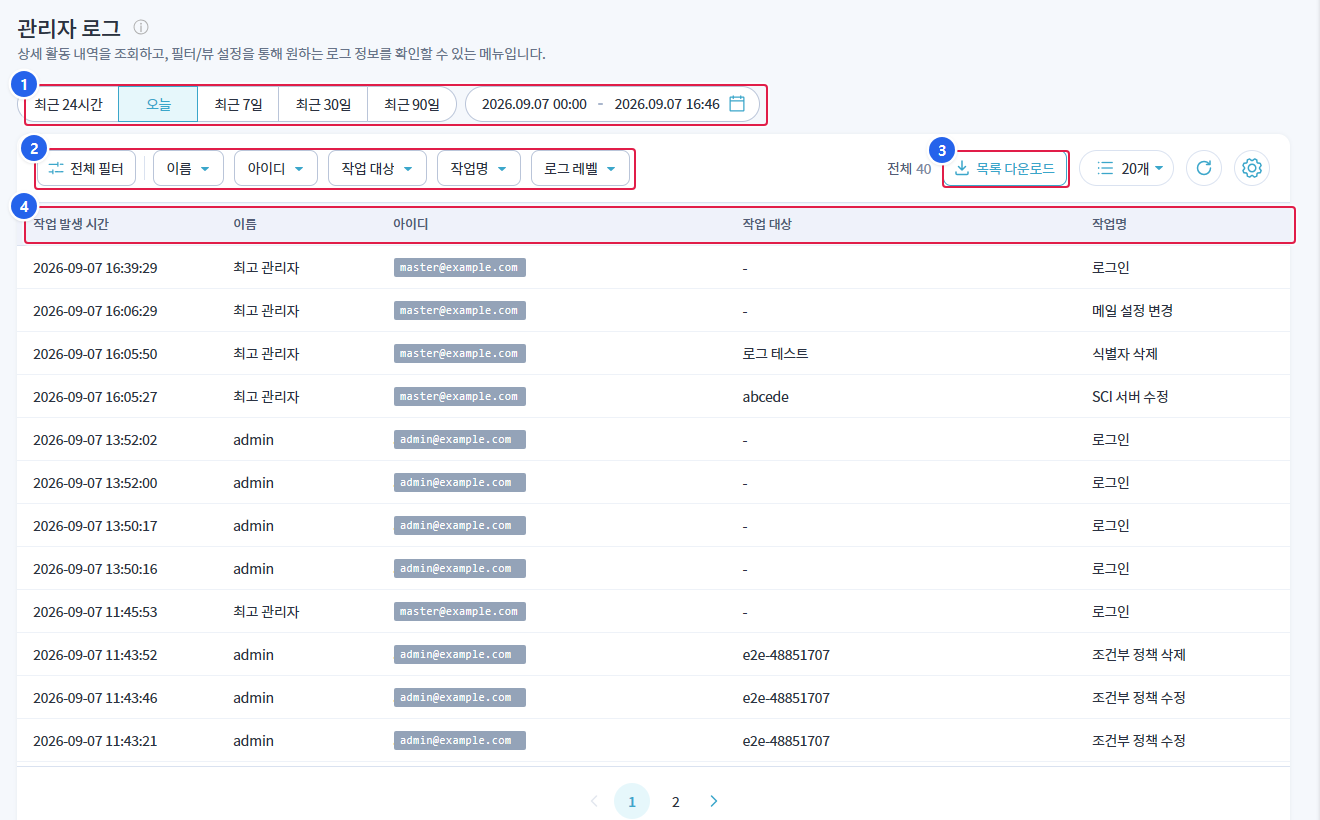
1. Query Period
최근 24시간/오늘/최근 7일/최근 30일/최근 90일Select from the preset or specify the start and end date and time directly in the date input field on the right.
2. Filter
전체 필터/이름/아이디/작업 대상/작업명/로그 레벨to narrow down the search range.
3. Download List
- Download the retrieved list as a file.
4. List
- The administrator activity history that meets the search criteria will be displayed in reverse chronological order.
2. List Column
| Column | Explanation |
|---|---|
| Work Occurrence Time | Date and time when the administrator task was performed |
| name | Name of the administrator who performed the task |
| id | Admin account that performed the task |
| Target of Work | Target of the applied operation (if not applicable,-(indicated by) |
| Task Name | Types of tasks performed |
3. Task Name
The types of actions performed in the management console are recorded. The main items are as follows.
| division | Example of Work Name |
|---|---|
| Authentication | Login |
| Settings | Change Mail Settings, Modify SCI Server |
| License | Delete Identifier |
| Policy | Conditional Policy Modification, Conditional Policy Deletion |
The complete list of task names is작업명You can check in the filter's selection options.
4. Features
| Function | Explanation |
|---|---|
| Select Query Period | 5 types of presets or specify date range directly |
| Filter | Name / ID / Target / Task Name / Log Level |
| Download List | Download the retrieved list as a file |
| Page Size | Select the number of items to display on a page |
| Refresh | Re-query data with current conditions |
| Column Settings | Display Column and Change Order |